Trading reports
Purchases net, payments in the period, stock on hand, plus AR/AP aging, stock by warehouse, and vendor spend — under the Reports sidebar group.
-
Step 1
Open Trading Reports
Reports → Trading Reports. Pick Today, This week, This month, or This year — same options as Dashboard period.
Screenshots show the English workspace UI.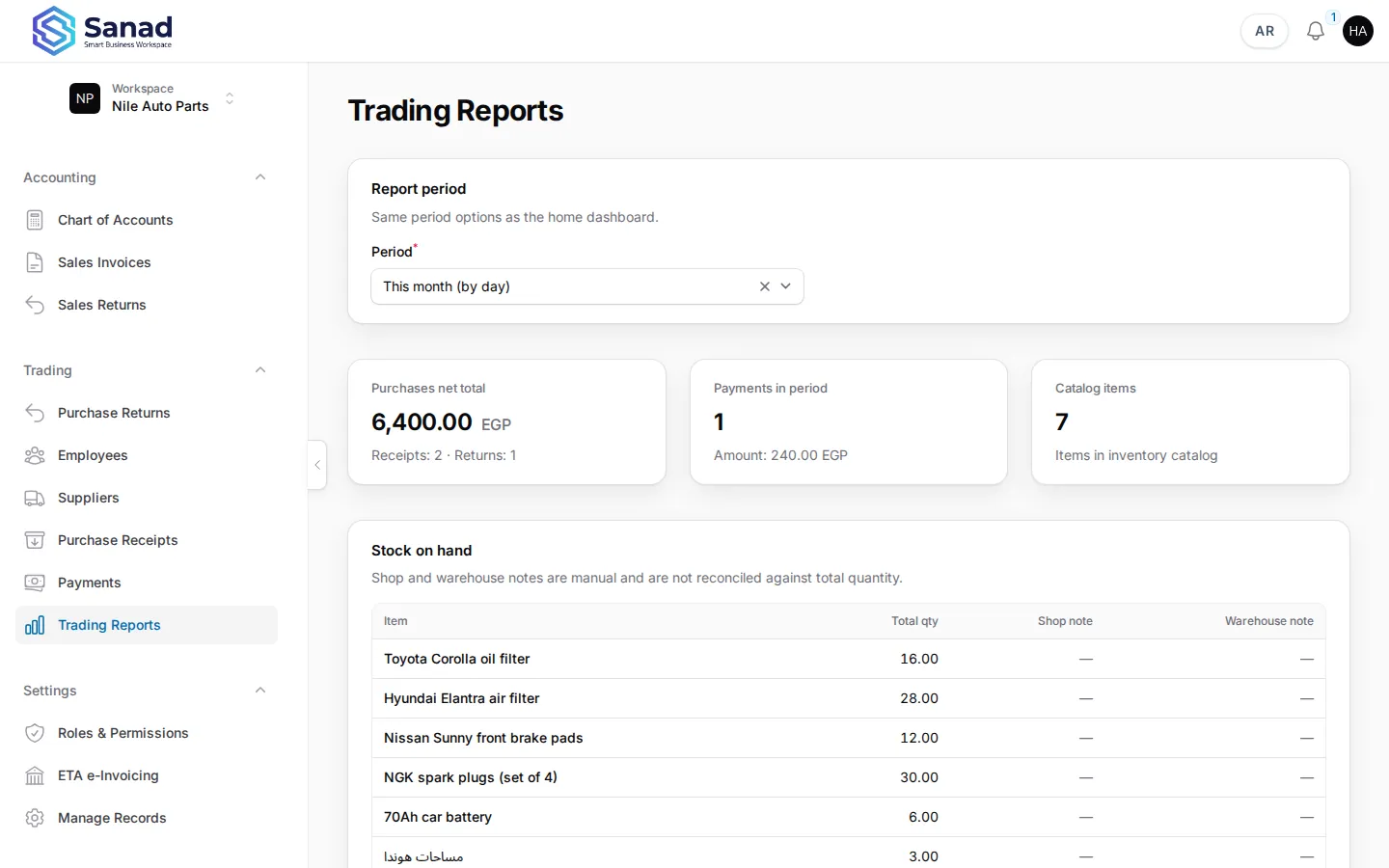
-
Step 2
Purchases and payments cards
Purchases net total excludes opening-balance receipts and the system supplier. Payments counts rows paid in the selected period.
Screenshots show the English workspace UI.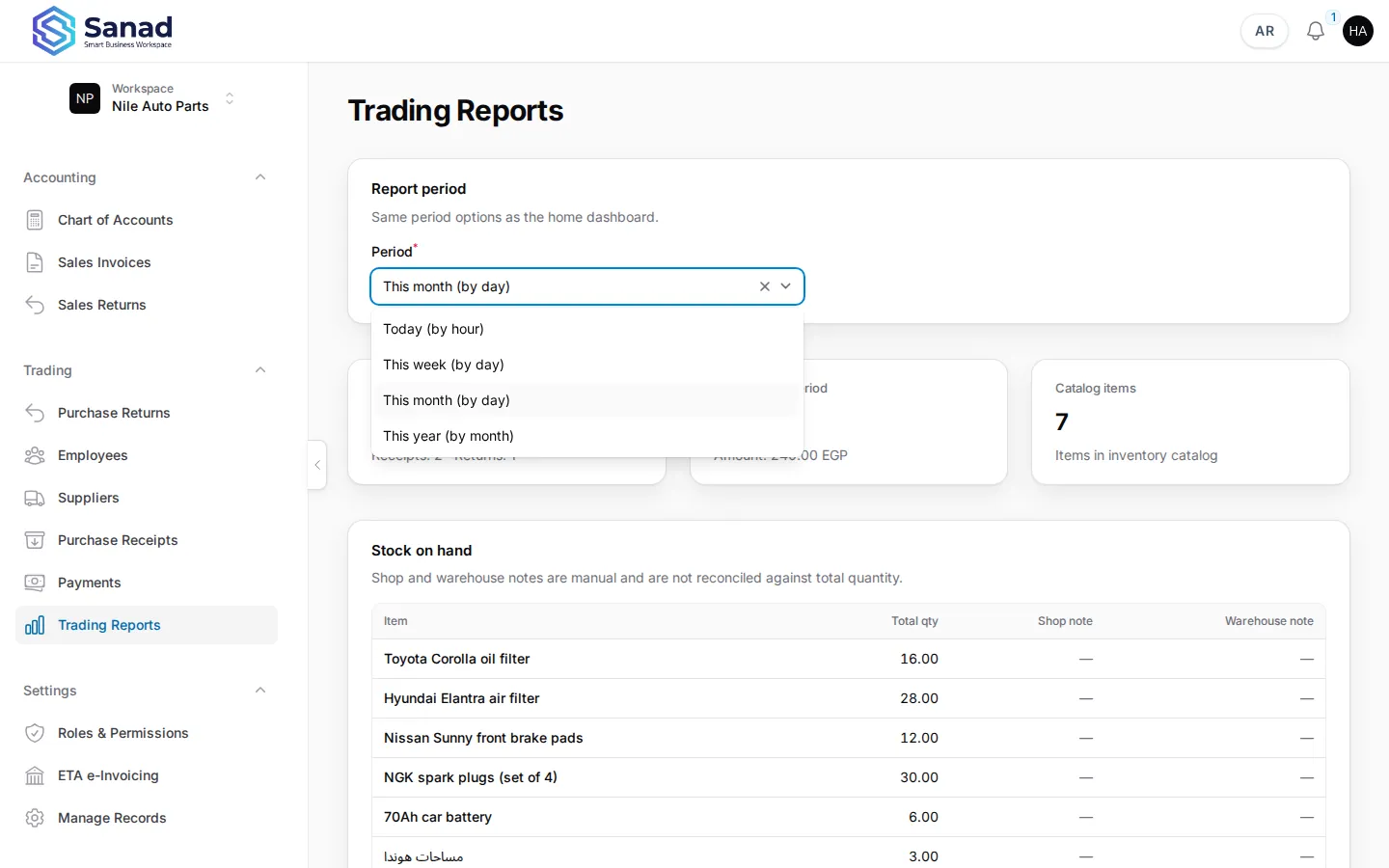
-
Step 3
Stock on hand table
Shows item name and on-hand quantity. Trading workspaces use product warehouse totals (sum of all warehouses). Sales still require stock in the default warehouse.
Screenshots show the English workspace UI.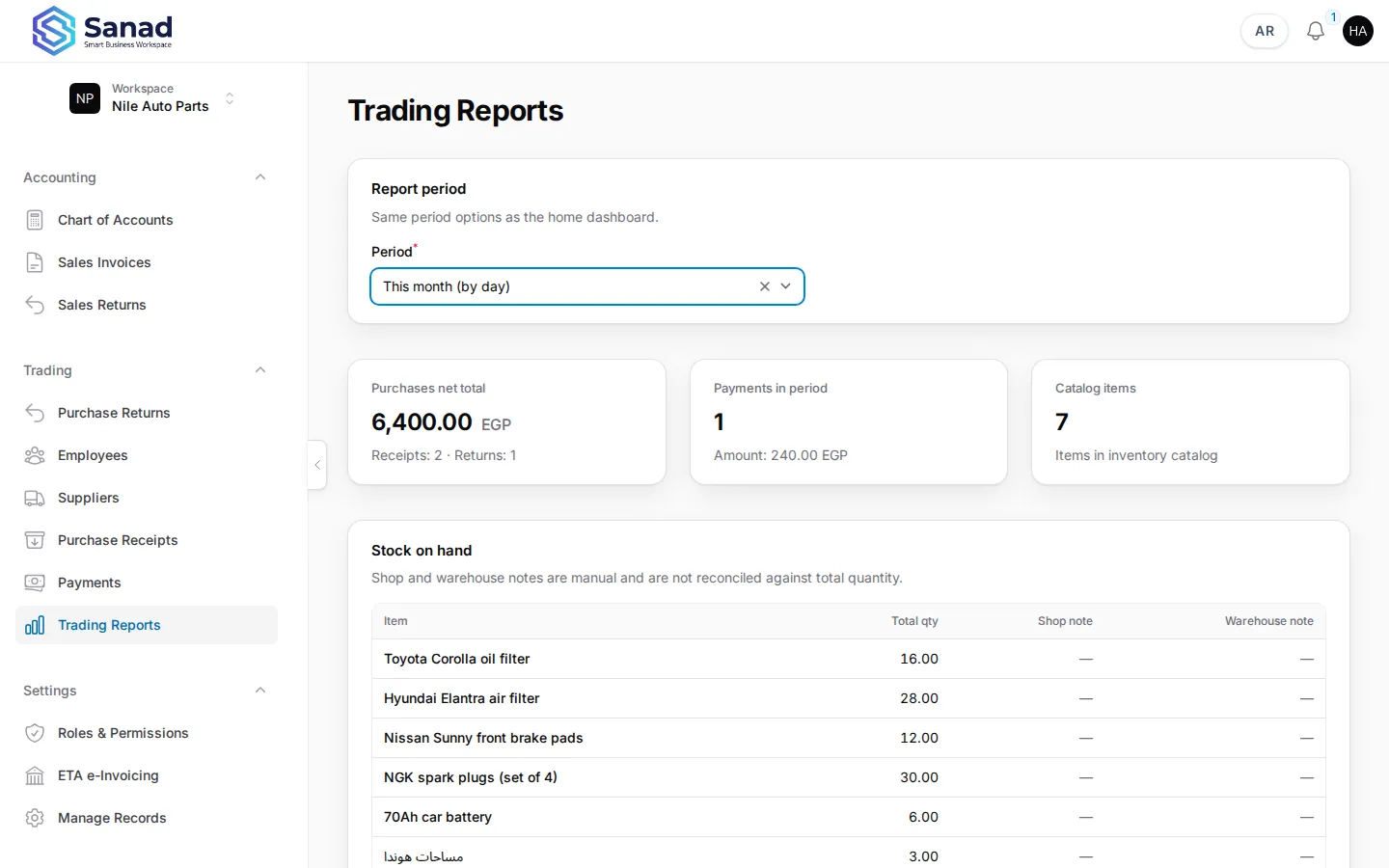
-
Step 4
AR aging
Reports → AR aging. Read-only buckets of open customer balances as of today. Period only affects the DSO window. Hard credit-limit block is not enabled.
Screenshot coming soon -
Step 5
AP aging
Reports → AP aging. Read-only buckets of open supplier balances as of today. Period only affects the DPO window.
Screenshot coming soon -
Step 6
Stock by warehouse
Reports → Stock by warehouse. Matrix of quantity (and value) per product and warehouse. Filter by warehouse when needed.
Screenshot coming soon -
Step 7
Vendor spend
Reports → Vendor spend. Top suppliers by purchase spend for the selected period, with a chart on the same page.
Screenshot coming soon
Related articles
Purchase receipts
Record stock received from a supplier. Stock and supplier balance (AP) update together when you save.
Payments and balances
Record money paid to suppliers or received from customers against open AR/AP charges. On-credit sales invoices create customer balances automatically.
Home dashboard and revenue
See KPIs, charts, and plan usage on home for lists with Include in revenue dashboard turned on.