Trading Pack overview
Summit workspaces get suppliers, purchase receipts, returns, AR/AP balances, payments, opening balances, and trading reports. Cash sales stay simple; credit sales post to the customer balance.
-
Step 1
Find Trading screens in the sidebar
After your plan includes Trading, open Purchasing (Suppliers, Purchase Receipts, Purchase Returns, Payments, Opening Balance once), Inventory (Brands, Products, Warehouses, Stock transfers), Reports (Trading Reports, AR aging, AP aging, Stock by warehouse, Vendor spend), and People (Employees).
Screenshots show the English workspace UI.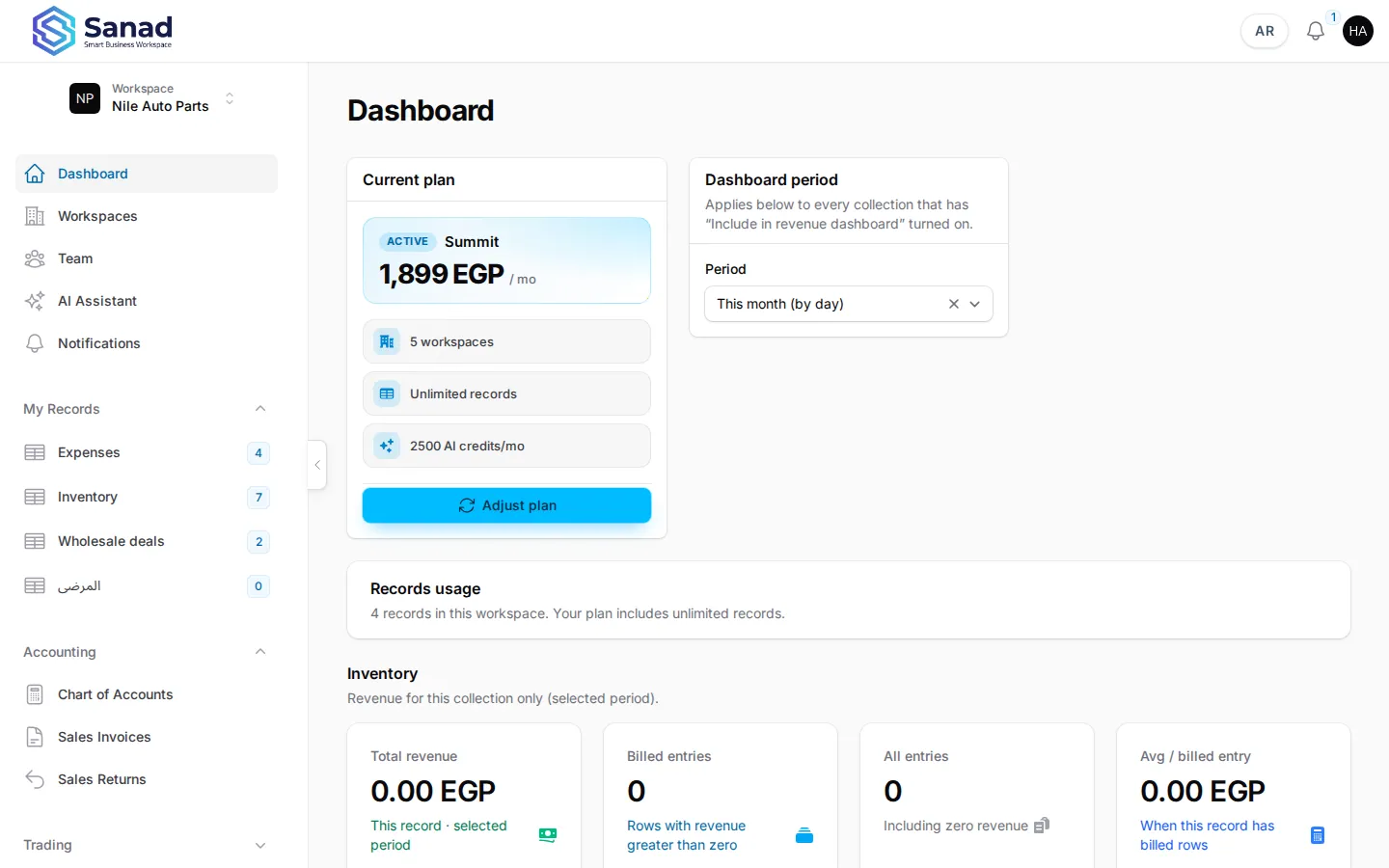
-
Step 2
Confirm the plan gate
Trading appears only when the workspace subscription is Summit / Business. If modules are locked, use Adjust plan on the dashboard or contact Sanad support.
Screenshots show the English workspace UI.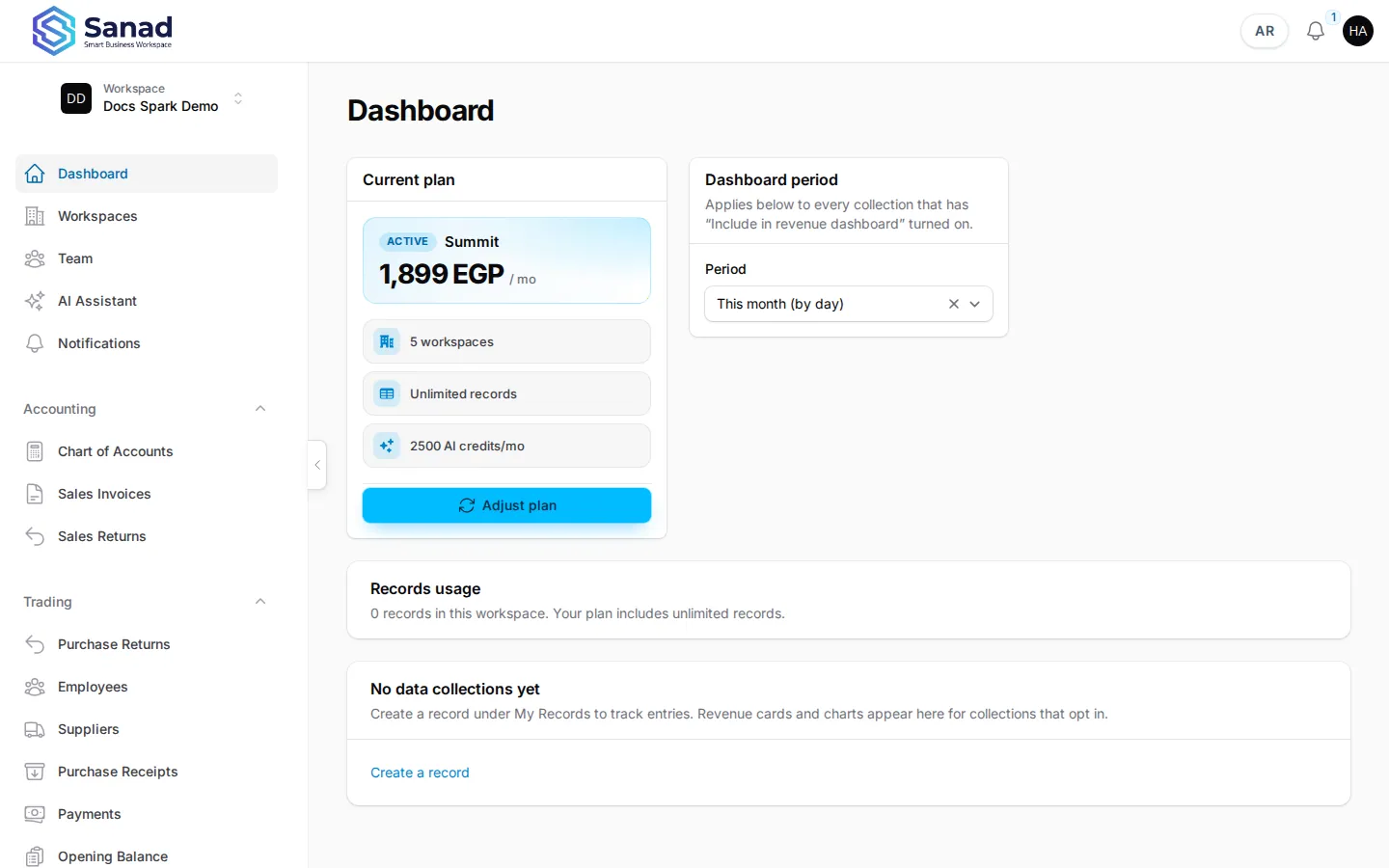
-
Step 3
Assign Trading permissions
Settings → Roles & Permissions → tick Trading — List / Create / Edit / Delete as needed. Purchase and payment screens stay read-only after posting; corrections use return documents.
Screenshots show the English workspace UI.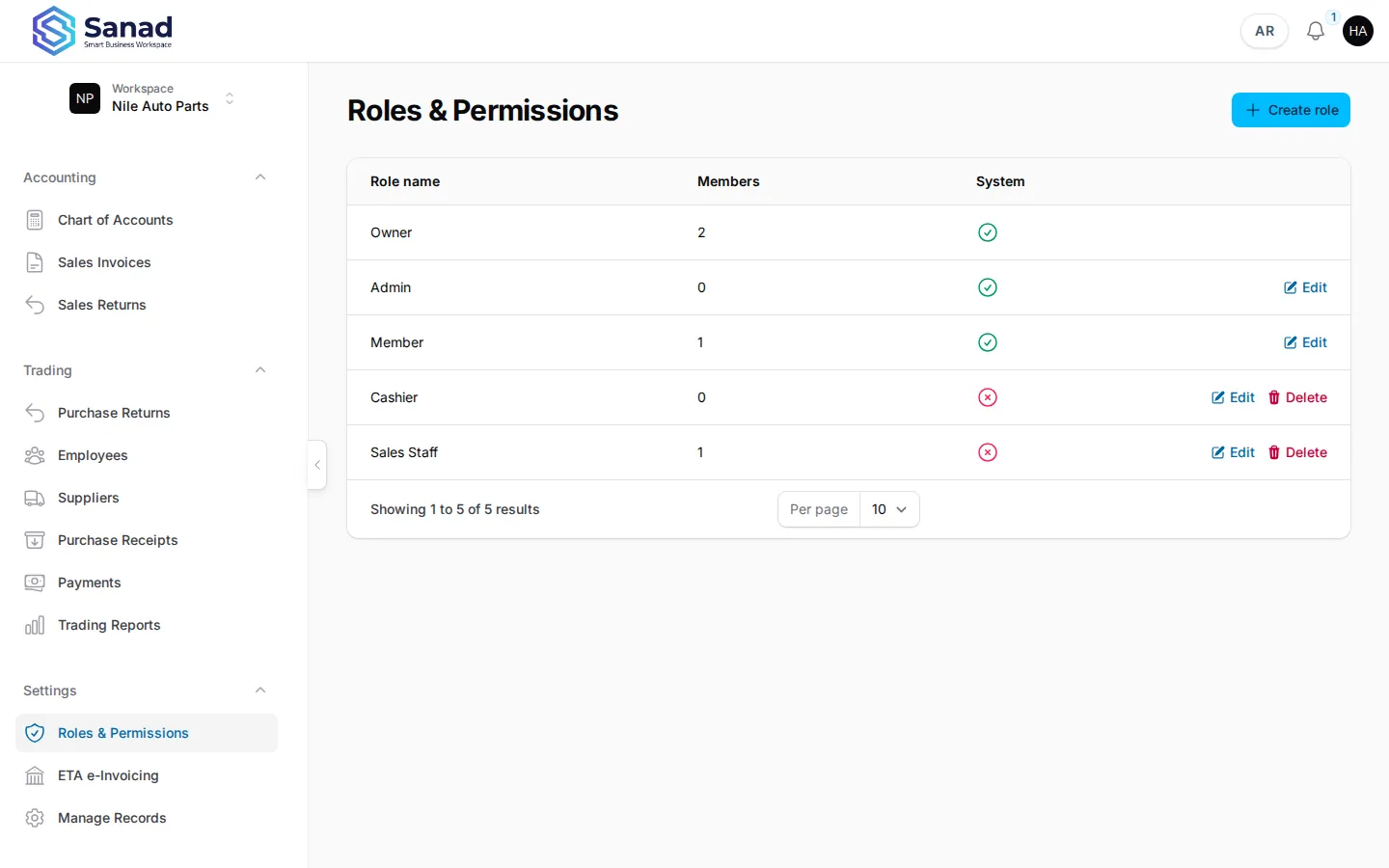
Related articles
Products, warehouses, and transfer
Trading shops sell Products, keep quantity in warehouses, and move stock with a direct transfer. Sales always use the default warehouse (Main).
Suppliers
Maintain your supplier directory before recording purchase receipts or opening balances.
Purchase receipts
Record stock received from a supplier. Stock and supplier balance (AP) update together when you save.
Plans and billing
What each plan unlocks, how to request a change, and what Pending payment means.